Configuration
Keyboard Shortcuts
The complete default keybinding table for ArchEclipse, and how to add your own.
All bindings live in ~/.config/hypr/config/bind.lua. SUPER is the Windows
key; the modifier order is SUPER + CTRL + SHIFT + key. Bindings below are the
tracked defaults and can be changed in that file or supplemented from
~/.config/hypr/config/custom/.
Windows#
| Shortcut | Action |
|---|---|
SUPER + F | Toggle fullscreen |
SUPER + Q | Close the active window |
SUPER + SHIFT + Q | Kill the active window |
SUPER + SPACE | Toggle floating |
SUPER + ALT + SPACE | Pin the active window |
SUPER + Left/Right/Up/Down | Focus in that direction |
SUPER + CTRL + Left/Right/Up/Down | Move the window in that direction |
SUPER + SHIFT + Left/Right/Up/Down | Resize by 25 px (repeating) |
SUPER + left-drag | Move a window |
SUPER + right-drag | Resize a window |
SUPER + SHIFT + left-drag | Spawn a floating terminal under the selected rectangle |
Applications and panels#
| Shortcut | Action |
|---|---|
SUPER + Return | Open foot |
SUPER + CTRL + Return | Open a floating foot |
SUPER + P | Open foot running btop on workspace 5 |
SUPER + SUPER (SUPER + SUPER_L) | Toggle the launcher |
SUPER + A | Open the all-apps launcher |
SUPER + SHIFT + V | Open clipboard history |
SUPER + period | Open the emoji picker |
SUPER + SHIFT + N | Open notes |
SUPER + R | Toggle the right panel |
SUPER + L | Toggle the left panel |
SUPER + M | Toggle the standalone media panel |
SUPER + W | Toggle the wallpaper picker |
SUPER + F1 | Toggle the welcome tour |
SUPER + SHIFT + TAB | Toggle the workspace overview |
Workspaces#
| Shortcut | Action |
|---|---|
SUPER + 1 … SUPER + 9, SUPER + 0 | Focus workspace 1–10 |
SUPER + CTRL + 1 … 0 | Move the window to workspace 1–10 and follow it |
SUPER + SHIFT + 1 … 0 | Move the window silently (do not follow) |
SUPER + KP_End … KP_Insert | Focus workspaces 11–20 |
SUPER + CTRL + KP_* | Move the window to workspaces 11–20 |
SUPER + SHIFT + KP_* | Move silently to workspaces 11–20 |
SUPER + TAB | Previous workspace |
SUPER + mouse wheel down / up | Next / previous workspace |
SUPER + S | Toggle the special workspace |
SUPER + CTRL + S | Move the active window to the special workspace |
The numpad mapping runs left-to-right, bottom-to-top as printed on a numeric
keypad: KP_End (11), KP_Down (12), KP_Next (13), KP_Left (14),
KP_Begin (15), KP_Right (16), KP_Home (17), KP_Up (18), KP_Prior (19),
KP_Insert (20).
Workspace 1 accepts SUPER + 1. Workspace 10 is both SUPER + 0 and
SUPER + Shift + 0; workspace_back_and_forth and cycle behaviour are enabled.
Screenshots and recording#
| Shortcut | Action |
|---|---|
SUPER + SHIFT + S | Screenshot the focused monitor |
SUPER + CTRL + SHIFT + S | Screenshot a selected area |
SUPER + ALT + S | Screenshot every monitor |
SUPER + SHIFT + R | Toggle recording of the focused monitor |
SUPER + CTRL + SHIFT + R | Toggle area recording |
SUPER + ALT + R | Toggle recording on every monitor |
Capture scripts live in ~/.config/hypr/scripts/. Their directories, formats
and codecs are configured in Settings → Screenshots and Recording.
Media, brightness and system#
| Shortcut | Action |
|---|---|
XF86AudioRaiseVolume / ALT + F12 | Volume +5% |
XF86AudioLowerVolume / ALT + F11 | Volume −5% |
XF86AudioMute | Toggle mute |
XF86MonBrightnessUp / ALT + F3 | Brightness +10 |
XF86MonBrightnessDown / ALT + F2 | Brightness −10 |
SUPER + Escape | Lock the screen |
SUPER + SHIFT + Escape | Lock the screen (alternate bind) |
SUPER + CTRL + Escape | Lock, wait one second, suspend |
SUPER + CTRL + SHIFT + Escape | shutdown now |
The ALT + F* bindings are fallbacks for keyboards without media keys. Volume
changes go through wpctl; brightness tries the Quickshell brightness IPC
first and falls back to config/scripts/brightness.lua, which uses
brightnessctl and DDC/CI.
Restart and bar controls#
| Shortcut | Action |
|---|---|
SUPER + B | Restart the bar/shell |
SUPER + ALT + Backspace | Toggle the bar on the focused monitor |
Adding a binding#
Create a custom module rather than editing the tracked file:
-- ~/.config/hypr/config/custom/keybinds.lua
hl.bind("SUPER + T", hl.dsp.exec_cmd("foot -e btop"))
hl.bind("SUPER + SHIFT + W", hl.dsp.exec_cmd("xdg-open https://wiki.hypr.land"))
Reload and check for errors:
hyprctl reload
hyprctl configerrors
Custom modules load after bind.lua, so a new chord works immediately. Avoid
binding the same chord twice; the last definition wins in Hyprland, but the
result can be confusing.
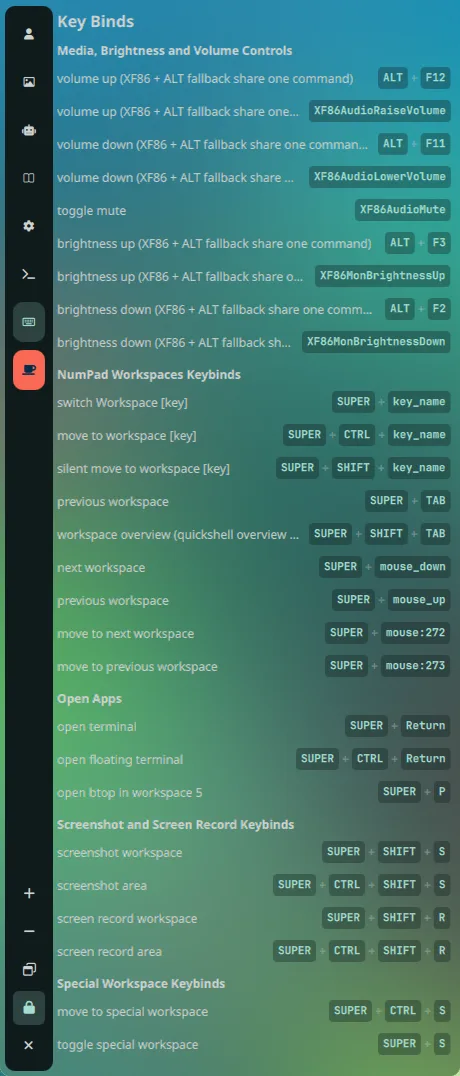
The left panel's Key Binds tab renders the active bindings from the running configuration, which is useful for checking what is actually loaded.