Configuration
Widgets
The bar modules, expandable islands, left and right panel tabs, and the launcher's query modes.
The Quickshell shell is assembled from widgets around one bar per monitor. Most
widgets are small QML files under
~/.config/quickshell/archeclipse/widgets/; state lives in
services/ singletons and settings come from theme/Settings.qml.
Bar modules#
The default bar is defined in widgets/bar/DefaultBar.qml. It draws the central
pill and its cells:
| Module | File | Shows |
|---|---|---|
| Workspaces | Workspaces.qml | Workspace indicators and occupancy |
| Window title | WindowTitle.qml | Active window title |
| Media | MediaPill.qml | Current player and playback state |
| Tray | Tray.qml | StatusNotifier tray items |
| Network | NetworkWidget.qml | Connectivity and bandwidth |
| Volume | Volume.qml | Sink volume and mute |
| Brightness | Brightness.qml | Backlight/DDC brightness |
| Battery | Battery.qml | Battery state, when a battery exists |
| Clock | Clock.qml | Date and time using the configured format |
| Bandwidth | Bandwidth.qml | Network throughput |
| Resource monitor | ResourceMonitor.qml | CPU/GPU/memory sampling |
The bar also includes hot zones, side pills, the control card and expandable islands:
| Island | Purpose |
|---|---|
SearchIsland | Launcher surface |
OverviewIsland | Workspace/window overview (SUPER + SHIFT + TAB) |
WallpaperIsland | Wallpaper picker (SUPER + W) |
PlayerIsland | Media controls |
WeatherIsland | Weather details |
SystemMonitorIsland | Detailed resource view |
OsdIsland | Volume/brightness feedback |
ScreenshotIsland | Screenshot and area-capture actions |
RecordingIsland | Recording state and stop control |
ControlCard | Quick controls inside the default bar |
LeftIsland / RightIsland | Panel hosts for the side tabs |
Islands expand in place with a clip/fade animation. Hover behaviour uses a
dwell threshold (revealInPressure) and a close delay
(revealOutPressure). See Bar for the state machine
and IPC.
Left panel tabs#
The left panel is a StackLayout of lazy-loaded tabs, in this fixed order:
- UserProfile — avatar, identity, repo statistics and version information.
- BooruViewer — image board browser with configurable tags and sources.
- ChatBot — OpenRouter-backed chat with optional context from the active workspace, window, clipboard and file.
- MangaViewer — MangaDex/MangaLib reader. Upstream marks it WIP.
- SettingsWidget — the Settings panel.
- CustomScripts — one-click utility actions.
- KeyBinds — live list generated from the Hyprland configuration.
- Donations — supporter and donation information.
Tabs are created on first selection and then kept alive. The last selected tab is persisted in settings.
Custom scripts#
The Custom Scripts tab is a list of utility actions rather than arbitrary shell
scripts. Entries include restarting the bar, launching Hyprpicker, opening
nwg-displays for resolution changes, updating packages, clearing the clipboard,
toggling recording and opening common apps. Entries that need a missing binary
offer to install it. The definitions live in
widgets/leftPanel/CustomScriptsWidget.qml.
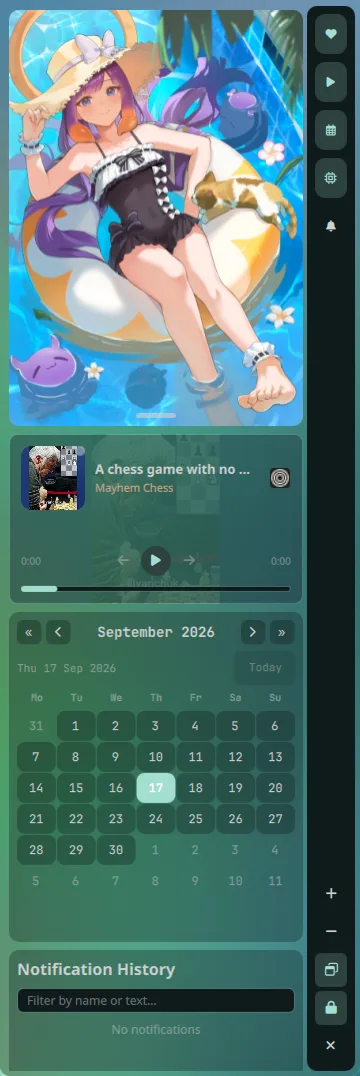
Right panel widgets#
The right panel renders only the widgets listed in
Settings.rightPanelWidgets. The canonical set is:
| Widget | Contents |
|---|---|
| Waifu | Random wallpaper/image viewer |
| Media | Player controls, progress and lyrics |
| NotificationHistory | Past notifications |
| Calendar | Month view and events |
| SystemResources | Live CPU, memory, GPU and temperature |
Drag the widget selector inside the right panel to reorder them, or use the visibility controls to disable one. The order and enabled flags persist; icons come from code, so saved files only store names, order and enabled state. Unknown names are dropped on load.
Launcher#
The launcher's query pipeline is in services/Launcher.qml. Opening it with no
query shows recent apps and quick actions. Recognized prefixes and inputs:
| Input | Result |
|---|---|
| plain text | Fuzzy app search, then suggestions |
>help | List every query mode |
>quickapps | Favourite apps; >quickapps term filters |
>recent | Recently launched apps |
>commands | System commands |
apps | Every installed application |
cb <text> | Clipboard history (text, HTML, images) |
note <text> | Add a note; note lists notes |
emoji <text> | Search the bundled emoji index |
term <command> | Run a command in foot |
app --arg | Launch an app with arguments |
hello > es | Translate text (translate-shell) |
example.com | Open a URL |
2+2 | Arithmetic |
100c to f | Unit conversion |
Notes and launch history are stored under
~/.cache/quickshell/launcher/. Clipboard history is owned by
ClipboardService, which runs wl-paste --watch and stores images under
~/.cache/quickshell/launcher/clipboard-images/.
Adding a widget#
Widgets are ordinary QML modules. Adding one is a code change, not a settings change:
- Add the
.qmlfile under the appropriate module directory. - Register it in that directory's
qmldir, orimport qs.<module>will not see it. - If it belongs in the right panel, add the canonical name and icon to
Settings.defaultRightPanelWidgets()and render it inRightIsland.qml. Only the five names above are currently accepted. - For a left-panel tab, add it to
LeftIsland.qml'stabOrderand to the IPC validator inservices/Ipc.qml.
The shell has no build step; restart the bar with SUPER + B or
lua ~/.config/hypr/config/scripts/bar.lua after editing QML.